First setup
After installing, HADA is running but not yet connected to anything. This page connects it to Home Assistant through MQTT, the recommended way. Without a broker, use the WebSocket engine instead.
Before you start
In Home Assistant you need the MQTT integration and a broker; the Mosquitto add-on is the usual choice. Have ready:
- the broker's address, which is usually the address of Home Assistant itself
- a user name and password the broker accepts. With the Mosquitto add-on, any Home Assistant user works; a user made just for HADA is a good idea
Connect
- Open the HADA window: double-click the HADA icon in the notification area, or choose HADA in the Start menu.
- Go to Connections and choose Unlock editing. Windows asks for administrator rights; the window reopens with (Administrator) in its title.
- Under MQTT, fill in the broker host, the user name and the password. An address pasted as
mqtt://broker:1883is split into host and port for you. - Choose Test connection. It says whether the broker accepted the connection, and why not if it did not.
- Save. The connection starts at once.
The Overview page should now show MQTT as Connected.
To report to more than one Home Assistant, choose Add a server and do the same for each; see Several Home Assistants at once. If the broker is found by its IP address but not by its name, see The broker's address.
In Home Assistant
Open Settings → Devices & services → MQTT. The computer is there as a device named after it, with all its entities.
Make it yours
- Device ID and name. By default both are the computer's name. Change them on the Connections page if you want other entity IDs. Every computer needs its own Device ID.
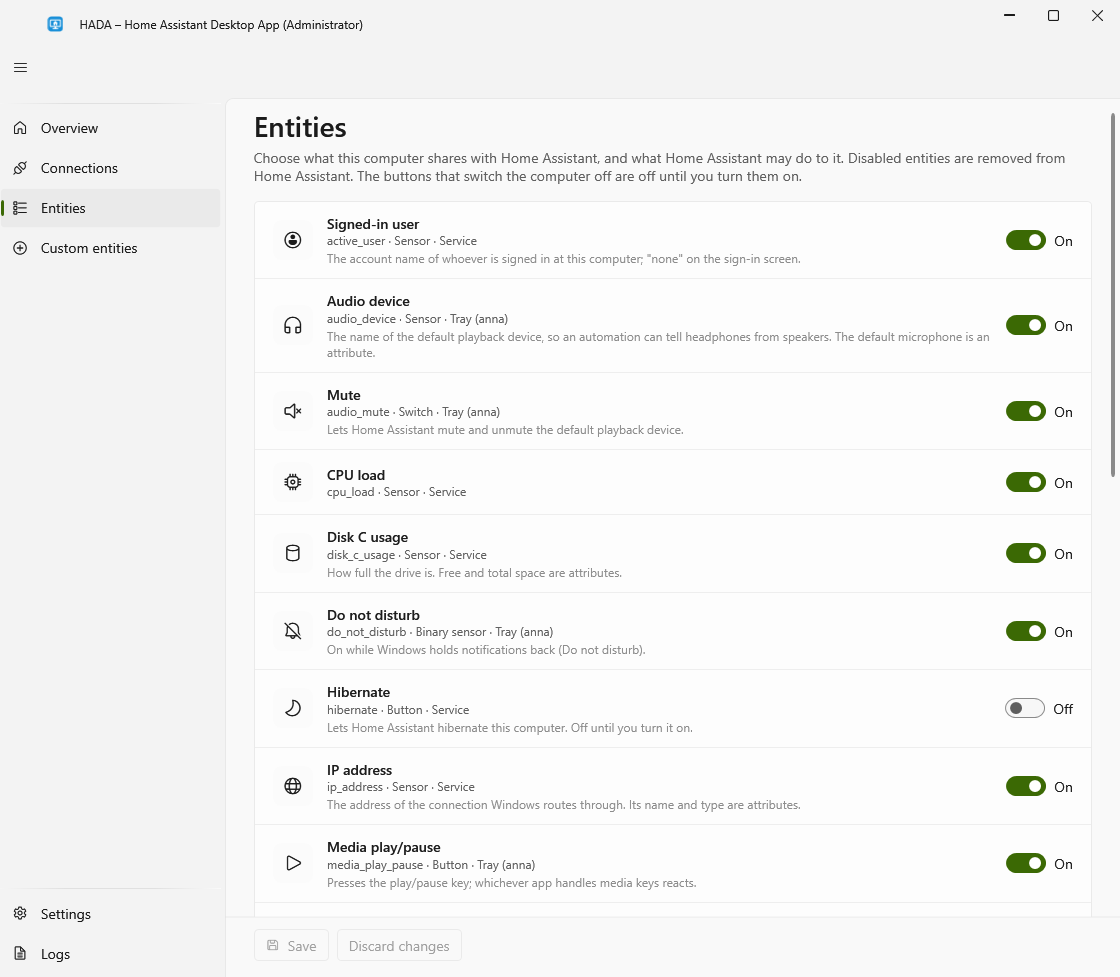
- What is shared. On the Entities page each entity has a switch.
active_window, for one, sends window titles; turn it off if you would rather not. See Privacy. - Power buttons. Sleep, hibernate, shut down and restart are off until you turn them on, on the same page. See Controls.
- Your own sensors and buttons. See Custom sensors and buttons.
If something does not show up, the Logs page says what the service is doing; see Troubleshooting.